Leading FRP Unlock Service Tool | Samsung

Leading FRP Unlock Service Tool | Samsung

Fast & Reliable Blacklist Unlock Service

Unlock your Samsung or any Android device in just minutes with SafeUnlocks, your go-to online service for fast and reliable FRP unlocks. Whether you’ve forgotten your Google account details or your device is locked due to FRP, we’ve got you covered. SafeUnlocks ensures a smooth and secure unlocking experience, tailored to your needs!

Although the FRP lock is crucial to your phone’s security and privacy, there can be some occasions where you will need to bypass this setting to regain access. Because of that, we understand that it can look like a difficult process, but there’s a good way to FRP unlock Samsung without so many issues. Today, in this article, we are going to tell you how to do it with SafeUnlocks. Keep reading and discover with us how this lock works and why we are one of the best tools to bypass Samsung FRP in minutes!

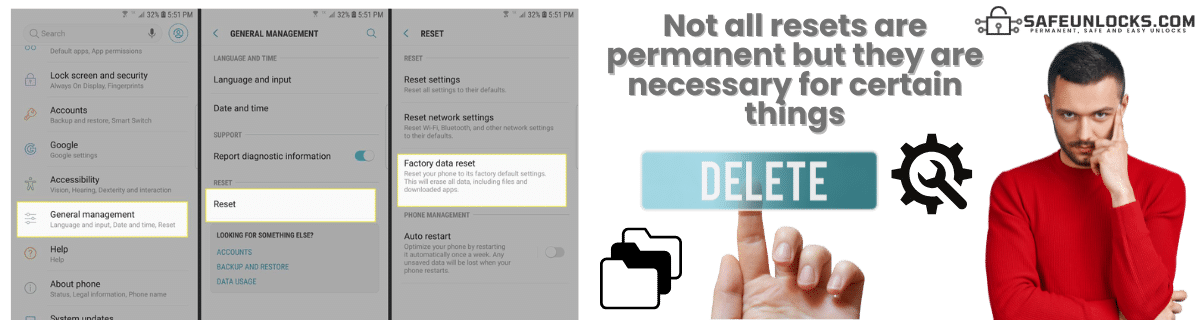
Is the Factory Reset Permanent on a Samsung?

Is the Factory Reset Permanent on a Samsung?

Not really, as it is still possible to recover your data (if you did a backup or with specialized tools). However, one of the purposes of the factory reset is to clean or delete any user data you might have on the phone that you don’t need anymore. Additionally, it returns the phone to the condition it was in when first turned on to improve performance or fix software-related issues.
Will doing a Factory Reset Also Delete my Samsung or Google Account?

In this case, a factory reset erases the accounts from the phone but not from the internet/cloud. That means that once you register with any Google or Samsung service, your account will be linked to their servers, and it will work as a way to identify and protect your phone from unauthorized access or theft. So, once you reset the Android phone, you will have to prove you are the owner by putting in the Samsung or Google account credentials. 

Why is FRP used on Samsung Devices?

FRP is a built-in Android safeguard feature used by Samsung (and many other Android devices) to protect you from unauthorized resets and keep your device (and data) secure, even if it’s lost or stolen. This lock on your device will not let anyone without the credentials have access to your Samsung phone, meaning that the data and backups inside the phone will be intact until you bypass the FRP lock or change the account. 

How can you Avoid a Factory Reset if you don’t want to Activate the FRP?

How can you Avoid a Factory Reset if you don't want to Activate the FRP?

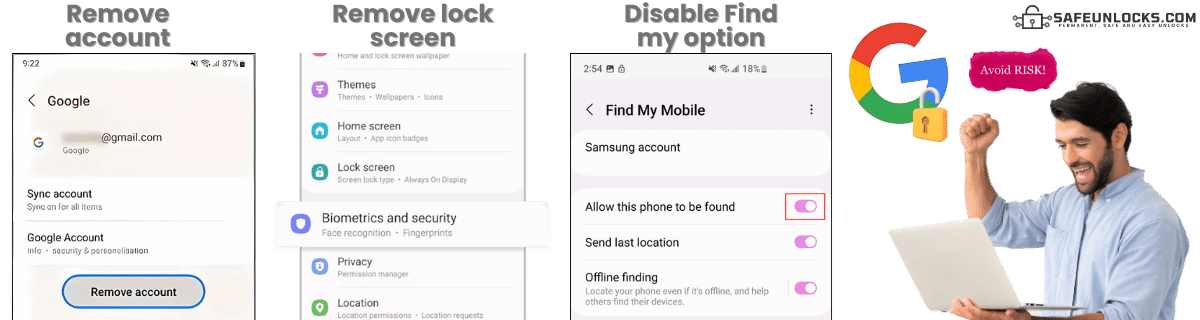
For this one, you will need to do certain things before even resetting the factory. For instance, you will need to remove any account (Google or Samsung) from the device that links your device to their servers, so the FRP lock is not active. After that, you also need to remove any screen lock or PIN option enabled on the device. Lastly, you need to create a backup of what you need (it can be on another device or your PC). 

If you want to make sure the factory reset protection will not be active once you do the reset, you can also turn off your Find My Phone services, and with that, it should be ready to go. Once you reset the Google account, the verification will not pop up, and you will have the option to enter a new account or enter the one you already have (if you remember it or have recovered the password). 
What can I do if I Can’t Remember My Google Account Password?

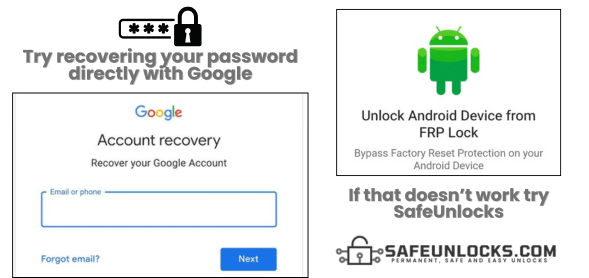
Since the factory reset protection on Samsung is active, you have two options. The first one is to try to recover the password with Google recovery (recovery page, support, two-step verification), and the second one is to use a Samsung FRP tool as a way to bypass the account on your Samsung device. The last option, however, is recommended to do once you don’t have more attempts to recover the password, as there’s a chance you might be able to remember it or recover it with security questions. 

I Cant Remember My Google Account Password. What Now
How can you Turn On or Off the FRP Option

How can you Turn On or Off the FRP Option?

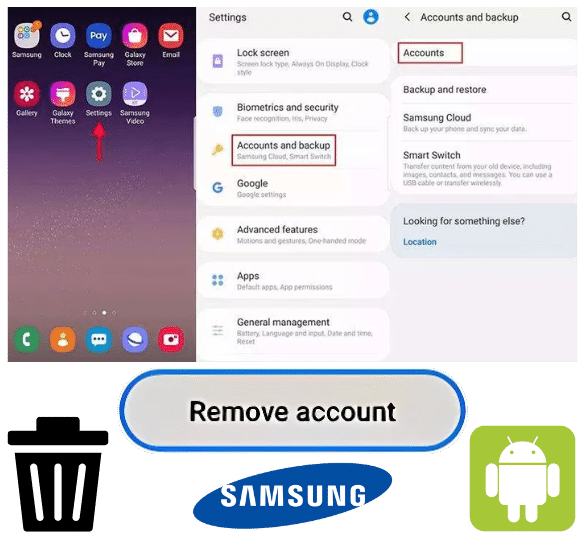
If you are able to regain access to your Samsung and want to remove the Google lock screen, you need to:

  • Open Settings > Scroll down and tap on Accounts and Backup> Manage Accounts.
  • Tap on your Google account.
  • Remove Account (this will unlink your Google account from the device).
  • Confirm the removal.

If you have a Samsung account instead of the Google FRP lock, then you need to:

  • Go to Settings > Accounts and Backup > Manage Accounts.
  • Tap on your Samsung account.
  • Tap Remove account and confirm.

Remember that for both options, it might ask for the password. If you attempt to remove your Google account from the device, the phone will prompt you for the account password to ensure it’s you making the changes and not someone else. Because of that, we recommend testing the password first, or if you don’t know it, recovering it before activating the Google FRP lock on Samsung by mistake.

Is there a Master Code for FRP Samsung Phones? 

In the past, one of the most common methods to bypass FRP without a PC or any FRP removal tool was with a master code that granted access to certain parts of the phone to unlock the FRP. However, that’s not possible nowadays, as Samsung has patched those methods with every Android version released. So, for this one, you will need to use other FRP bypass tools (like SafeUnlocks, for example) and remove Google locks that way. 

Can FRP Lock be Removed Remotely?

Can FRP Lock be Removed Remotely?

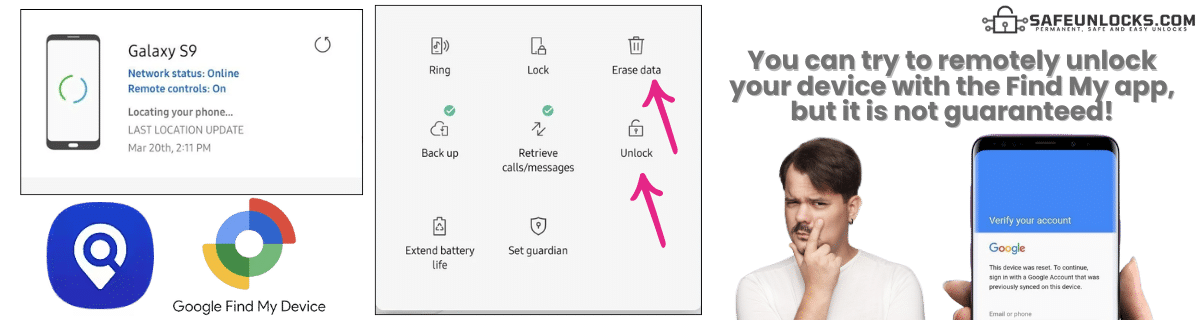
Yes, but in this case, it is complicated, as you need to have the Find My Phone option enabled and, with a PC or another device, attempt to restart the phone or erase the data inside to see if that removes the FRP lock. If that doesn’t work, another way to bypass Google accounts remotely will be with the Samsung or Google support team, but that one is also not 100% guaranteed, as they can’t do much about it unless you provide ownership of the device. 

Try Our FRP Unlock Samsung Solution!

FRP Solution

Since we know that recovering the password can be complicated on a locked Samsung device, we have created the perfect tool to remove FRP locks without a password. It's called SafeUnlocks, and you only need to follow 4 steps to finally unlock your device once and for all!

Step One.

First, you need to go to our main page and complete a form with your name, email, Samsung model, and IMEI or serial number of the device.

Step Two.

The second step will be to activate your order with our membership ID system to remove Google FRP locks.

Step Three.

In our third step, you will receive an email, or you will be able to download a Dummy ID linked to your device, containing the necessary data to help you bypass FRP locks on Samsung without a password.

Step Four.

The last step will be to enter those dummy credentials, and that will automatically wipe any old account associated with your Samsung Galaxy, allowing you to unlock the device.

Unlock Made Simple

Follow these 4 simple steps to unlock your Samsung device quickly and safely.

If you get confused easily and don’t want to deal with downloads and installs, it can also affect the method you use to remove the Google account details. In our case, we recommend using the SafeUnlocks online tool, but if you already know about this topic and feel comfortable connecting your Samsung to a PC, you can use the installation unlock tools at any time. 

No, you don’t need to remove the SIM card before factory resetting an Android device. The reset does not affect the SIM card, as it stores only network-related data, not your files or accounts.

You can make emergency calls but can’t access regular phone functions (like making calls to contacts) until you log in with the device’s Google account.

No, as in this case, the Samsung FRP lock can be activated if it wasn’t disabled beforehand. In this case, it is recommended that you disable any account or use the Find My Phone option before you reset the device to ensure there’s no data left on the Samsung before selling it.